Protection for workstations
Dr.Web Desktop Security Suite - a comprehensive solution for protecting workstations, laptops and virtual environments. It provides a high level of security, reduces the workload of information security specialists, and is easily integrated into an existing infrastructure.


Real-time protection from brand-new threats
It detects and neutralizes a wide variety of malware, including encryption ransomware, trojans and stealers, thanks to multilayer analysis and proactive technologies.

Centralized management and easy deployment
A single administrator console ensures full control over a security system and allows the solution to be deployed without complex configurations having to be made.

Support for major platforms and virtual environments
Compatible with Windows, macOS, and Linux; support for virtual and terminal environments ensures the solution’s flexibility and scalability.

Sparing use of system resources and reduced costs
Minimal CPU and RAM usage ensures fast operation even on low-end hardware and decreases the total cost of ownership
Dr.Web Desktop Security Suite protects against all types of cyber threats

Features (for Windows)
-
Signature analysis for detecting malware.
-
Behavioural analysis methods make it possible to analyz e the sequence of actions taken by all processes in the system.
-
Protection against encryption ransomware.
-
Scanning that is launched on demand or according to a schedule and performs a system antivirus scan.
-
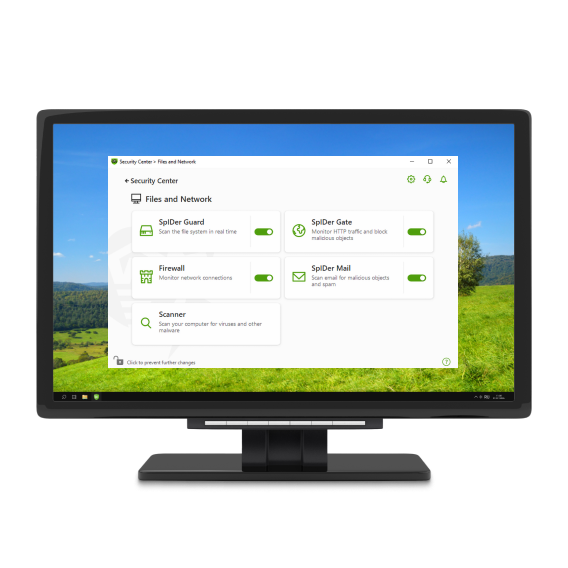
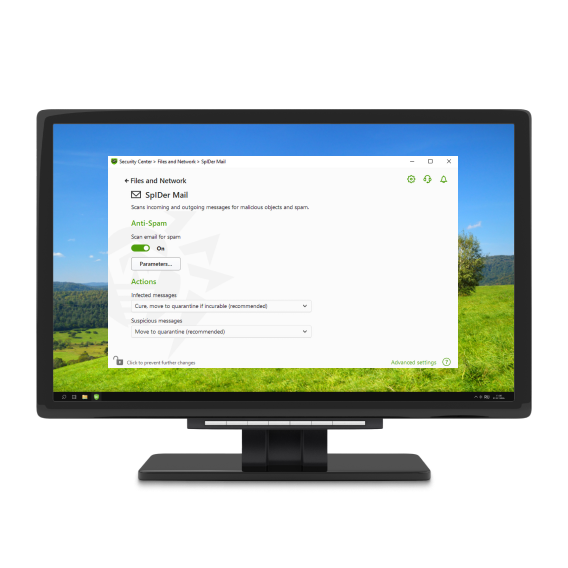
Microsoft Outlook mailboxes get checked for threats and spam.
-
Regular updates for the virus databases and other Dr.Web files, with their automatic installation.
-
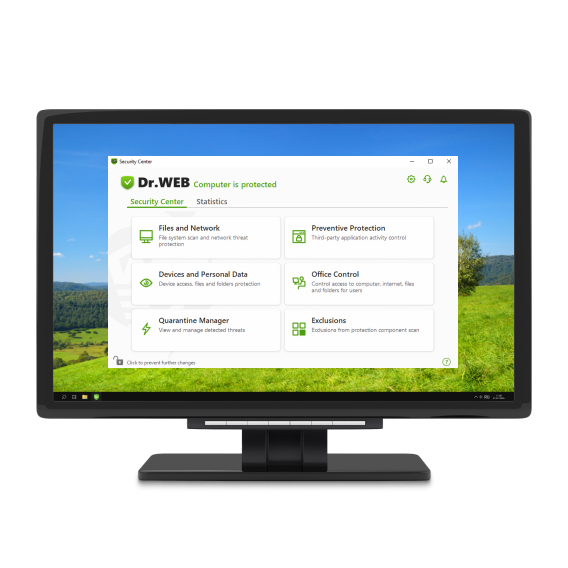
Configures and manages the operation of product components.
-
A program code emulation method used to detect polymorphic and encrypted viruses.
-
A heuristic analyzer using FLY-CODE technology — a universal algorithm for unpacking files.
-
Protects against exploits that take advantage of software flaws to gain control over a targeted application or an entire operating system.
-
Protects user files from encryption ransomware.
-
A cloud service that collects information from numerous users and promptly updates data on previously unknown threats.
-
A machine-learning method used to find and neutralize malicious objects whose information is not yet in the virus databases.
-
Injection protection controls the changes that applications make and prohibits the alteration of system and privileged processes.
-
Protects common applications installed on Windows computers: Internet browsers (Internet Explorer, Mozilla Firefox, Google Chrome, etc./MS Office applications/system applications/applications that use java, flash and pdf technologies/media players.
-
Detects and neutralizes threats before the mail client receives email from the server or before emails are sent to the mail server via the POP3/SMTP/IMAP4/NNTP protocols (IMAP4 means IMAPv4rev1).
Features (for macOS)
-
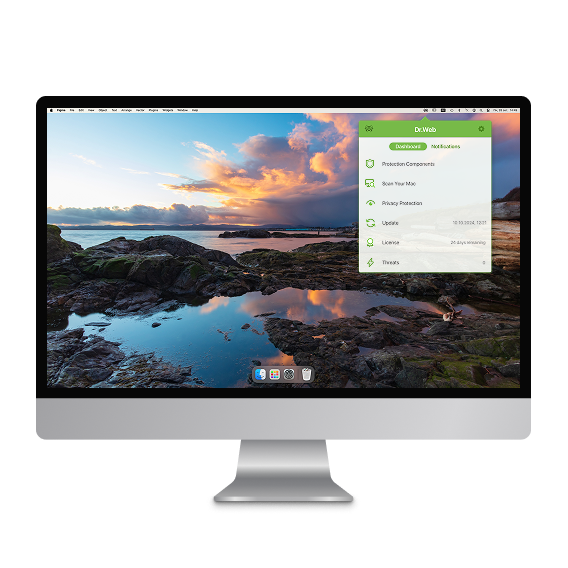
Regular updates ensure that the level of device protection remains current.
-
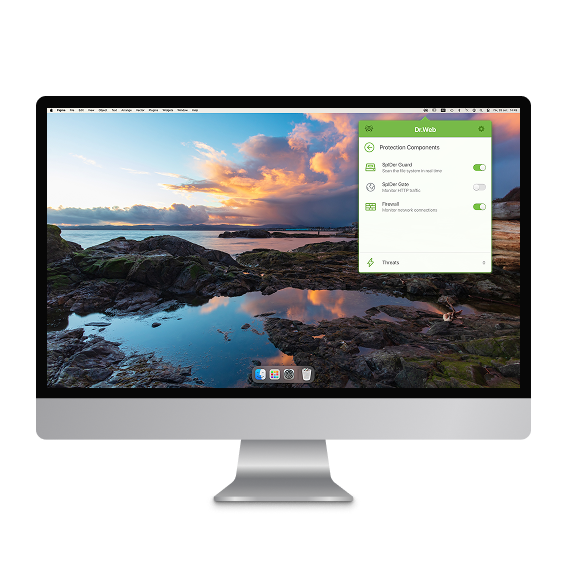
Protects cameras and microphones from unauthorised access.
-
Controls connections that applications make to the network and blocks suspicious connections.
-
Scans data transmitted over the unprotected HTTP protocol.
-
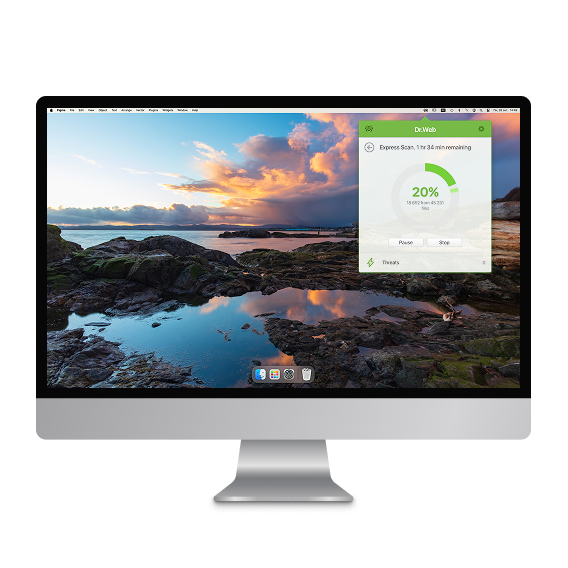
Regular scanning of all files on Macs.
-
On-demand scans.
-
Quick, full or custom system scans at the user's request.
-
Neutralizes detected threats (infected objects can be cured, deleted or moved to the quarantine).
-
Controls which applications can access the microphone/camera.
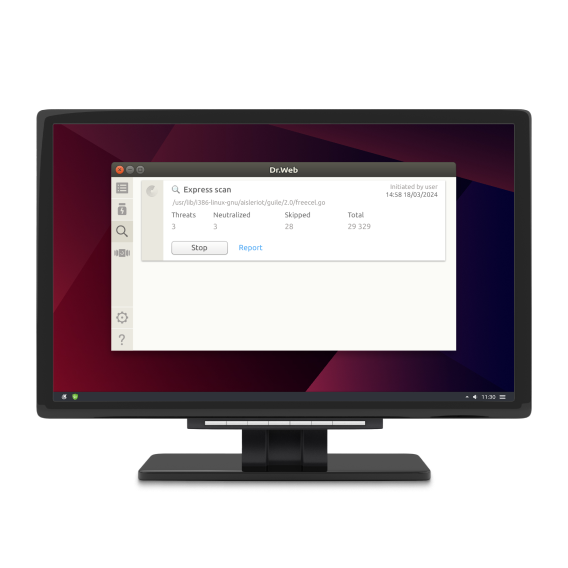
Features (for Linux)
-
Detects and neutralizes all possible types of malware using: signature analysis/heuristic analysis/Cloud-based threat detection technologies.
-
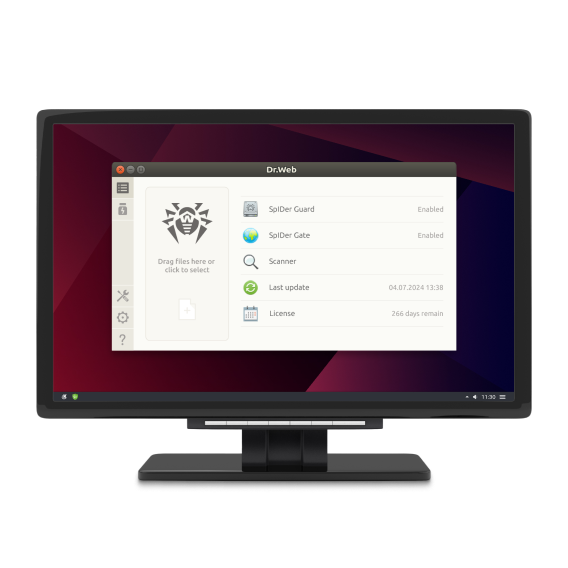
Tracks when data files are accessed and attempts are made to run executable files.
-
Monitors attempts to access servers on the Internet.
-
Mail scanning.
-
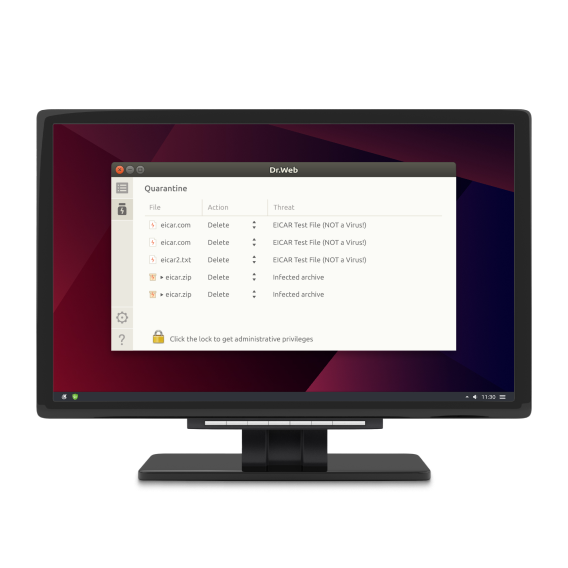
Securely isolates infected or suspicious objects in a special storage.
-
Automatically updates the Dr.Web virus database contents and the antivirus kernel to maintain highly reliable anti-malware protection.
-
Collects statistics on scans and virus incidents; keeps a log of detected threats and sends statistics on virus incidents to the Dr.Web Cloud service.
-
Ensures that all operations are under the control of the Dr.Web Enterprise Server or within the Dr.Web AV-Desk service.



Switch to Green
A programme that helps end users migrate to Dr.Web products for business use

Grow your cybersecurity confidence with Dr.Web Desktop Security Suite
